

IBM recently released a new version of the Splunk forwarder app. This is a very useful tool for anybody using both systems. As we know, Splunk and IBM QRadar are two of the top SIEM (Security Information and Event Management) products, but each offers different benefits. Based on Gartner assessment, Splunk lacks specific advanced threat detection solutions. In contrast, QRadar offers this feature. For this particular reason, it is worth rerouting data collected by Splunk to QRadar.
A new version of the Splunk forwarder app
The latest version, 2.0.0, of the Splunk forwarder app is available at the X-Force extension repository. It includes many improvements, such as a better user interface and a new workflow design. Also introduced the ability to configure the Splunk port number if you run the instance on a port other than the default 8089. Another new feature merges the two filter boxes into a dynamic search for instances based on location, description, and source types. We also added upgraded pagination to view more than 10 instances at a time.
The app should run on the latest versions of QRadar V7.2.8, V7.3.0, V7.3.1, and V7.3.2, and in modern browsers.
Configuring the Splunk forwarder app
You can add one or more Splunk instances, configure their hostname (or IP address), port number, and user credentials for each instance. If you use a Splunk Deployment Server, you can connect to it and generate a CSV file listing all Splunk servers in the deployment. After adding credentials for each server listed in the file, just upload the file to the app.
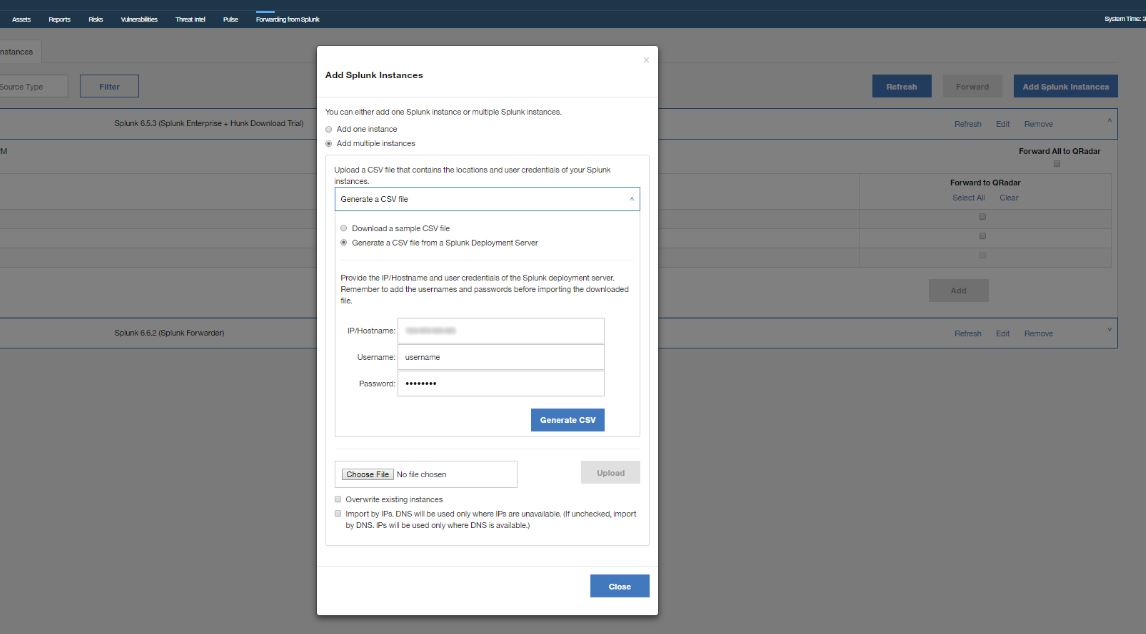 The Splunk Data Forwarding app keeps data in an app database because of memory limitations. Once you add Splunk instances to the app, the QRadar extension initially connects to each instance, collects its data, and stores it in its own database.
Events generated by the app
The app can dispatch the following five audit events. These include configuring the app, adding and deleting any Splunk instance, and starting and stopping data forwarding. The app uses the LEEF format to log the auditing events.
In addition to audit events, you can see forwarded events. Depending on the Splunk instance configuration, which can use a heavy or universal forwarder to send data, results will vary. A Splunk universal forwarder cannot route data based on the contents. If you want to forward data to QRadar, you must forward all of the data.
If you select the Forward All to QRadar checkbox, Splunk forwards all data from a universal forwarder. In general, the app uses port 514 to forward data to QRadar. To forward multiline events, use port 12468. You can preview the content of the data source before you decide to forward it. This view helps non-administrative users copy the information and send it to an administrator to change the Splunk instance. Before Splunk can start forwarding data to QRadar, the app must restart the Splunk instance. To stop Splunk from forwarding data to QRadar, go to the Forwarded Data Sources tab, select the relevant Splunk instances, and click Stop Forwarding.