
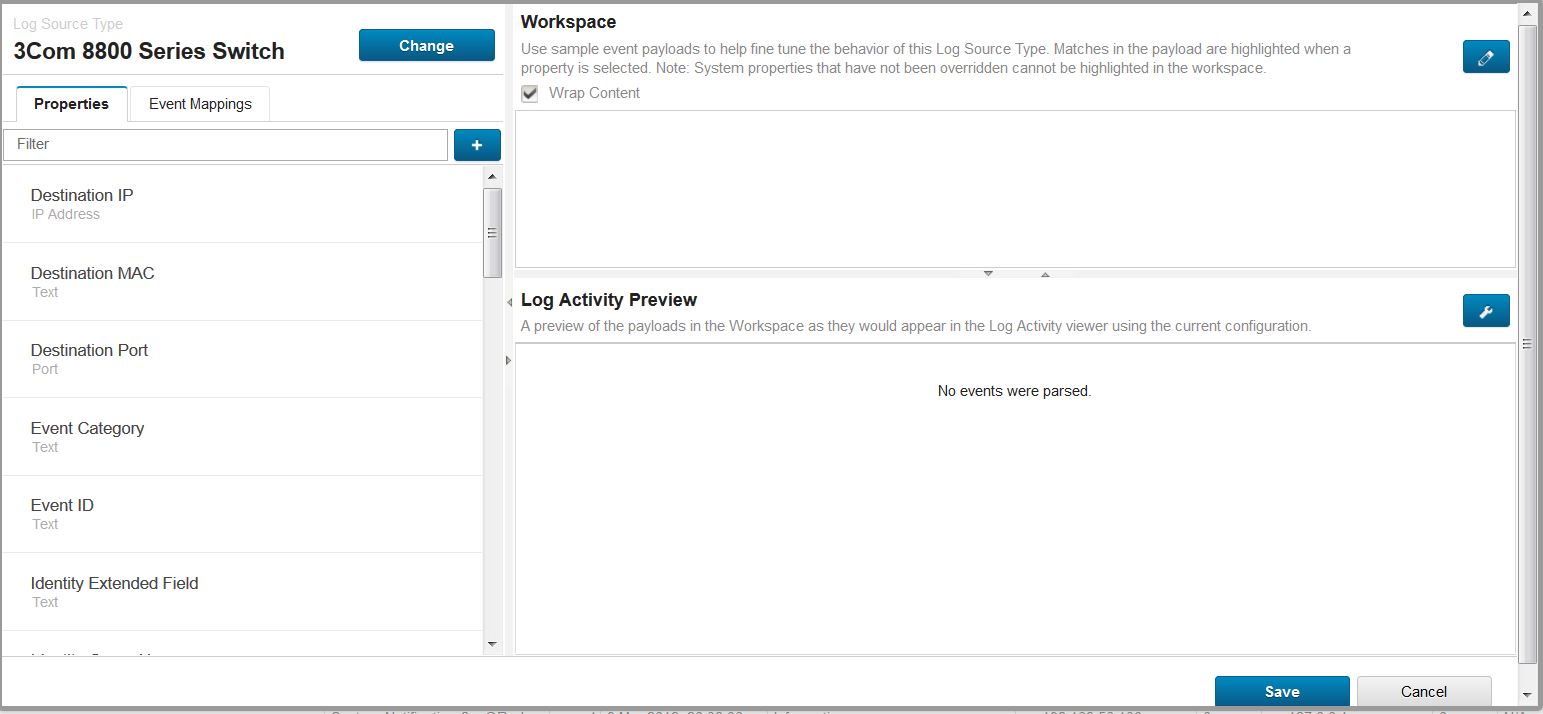
DSM Editor is a multi-task editor that lets you parse any event received by the QRadar box.
QRadar supports more than 1000 Log Sources out of the box. This is possible because this type of SIEM software includes device support modules called DSMs, which let QRadar parse logs. The most widely used software and devices have their own modules. For example, QRadar has DSMs for products from companies like AWS Amazon, Apache HTTP Server, Arbor Networks, BlueCat Networks, Carbon Black, Check Point, Cisco, Citrix, CyberArk, Exabeam, F5 Networks, FireEye, McAfee, Microsoft, Splunk, or Symantec. Each night, IBM provides DSM updates via the autoupdates process. QRadar accepts events from devices that produce events in the Common Event Format (CEF) and the Log Event Extended Format (LEEF).
Dealing with not parsed events
In the DSM Guide, you can find third-party device types and their supported versions. Each event from logs produced by listed software or devices should be properly converted into a readable format. If the currently available DSM is for a product officially supported by QRadar, but the version is out of date, try the DSM first to see whether it works. IBM tests the product versions in the guide, but vendor software updates may, on rare occasions, add or change event formats that break the DSM. If you notice events aren’t parsed properly, open a support ticket, and IBM should fix it. Before you do, check with the command below whether the latest DSM is installed on your system. Compare the version present on the system with the one available to download from the IBM repository called FixCentral.
# rpm -qa | grep -i "name_of_the_device_seneding_logs"
You can configure log sources for custom applications and systems that have no supported DSM. In the past, you had to use Universal DSM with DSM extensions. Please find some extensions in a zip package as an example by following the link with dsm_extension_examples. Nowadays, rather than using a universal DSM (uDSM) with extensions, you can create a new log source type by using the DSM Editor. The result is the same, but working with DSM Editor is much quicker and more effective than coding your own extensions.
Accessing DSM Editor
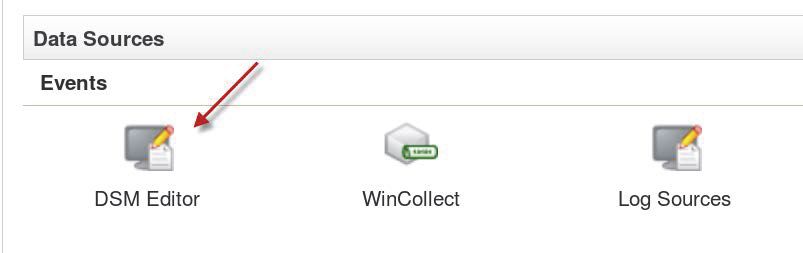
There are three ways to access DSM Editor. To start, you can pick DSM Editor from the Admin tab, Data Sources section.
Another way to open the editor is from the Log Activity tab in the Actions menu. The third method, let us open DSM editor after pausing incoming events, selecting one or more of them, and clicking the right mouse button, in order to get side menu.
After accessing DSM Editor, you can associate the incoming events as well as the extra content (custom properties, searches, rules, and so on) with just that log source type.
This is the end of the first part. Please find more detailed information on how to use DSM Editor in the second part of this article.